
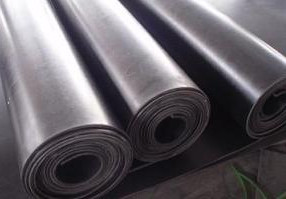
Jak działają płyty silikonowe i z czego są wykonane?
Coraz więcej firm sięga po płyty silikonowe, gdy zwykłe gumy zawodzą przy wysokiej temperaturze, parze czy silnym promieniowaniu UV. To materiał, który łączy elastyczność z czystością i stabilnością parametrów. W artykule wyjaśniamy, jak działają płyty silikonowe, jak je dobierać i gdzie sprawdzają się w przemyśle.
Płyty silikonowe powstają z kauczuku silikonowego, który po wulkanizacji tworzy sprężystą i stabilną sieć polimerową. Dzięki temu dobrze uszczelniają i tłumią drgania, a jednocześnie zachowują elastyczność w szerokim zakresie temperatur. W składzie znajdują się wypełniacze, barwniki i dodatki modyfikujące, które wpływają na twardość, kolor oraz odporność na czynniki środowiskowe. W aplikacjach wymagających większej sztywności stosuje się wersje zbrojone tkaniną. Płyty są bazą do wycinania płaskich uszczelek, podkładek i przekładek technicznych, także w wariantach do kontaktu z żywnością. W produkcji elementów na wymiar wykorzystuje się mieszanki dopasowane do wymagań danej branży, co ułatwia spełnienie wymogów formalnych w Unii Europejskiej.
Jakie właściwości termiczne mają płyty silikonowe?
Silikon dobrze znosi wahania temperatury i częste cykle nagrzewania oraz chłodzenia. Zachowuje elastyczność w niskich temperaturach i nie mięknie nadmiernie w wysokich. Istnieją mieszanki wysokotemperaturowe do pracy w podwyższonych temperaturach, na przykład w piecach czy autoklawach. Silikon jest izolatorem cieplnym, dlatego płyty mogą pełnić rolę przekładek termicznych i ochronnych. Wysoka odporność na starzenie cieplne ogranicza pękanie i kruszenie materiału w długim czasie użytkowania. W zastosowaniach skrajnych należy opierać się na danych z karty technicznej konkretnej mieszanki, aby potwierdzić bezpieczny zakres pracy.
W jakich aplikacjach przemysłowych sprawdzają się najlepiej?
Płyty silikonowe mają szerokie zastosowanie w wielu gałęziach przemysłu. Najczęściej używa się ich do:
- wycinania uszczelek płaskich do drzwiczek, pokryw i ram,
- przekładek termicznych i izolacji elektrycznej,
- mat antypoślizgowych i ochronnych na linie produkcyjne,
- ekranów i podkładek w piecach, komorach wędzarniczych i chłodniach,
- uszczelnień w branży spożywczej i przetwórczej, gdzie liczy się czystość i neutralność zapachowa,
- elementów w instalacjach chemicznych i urządzeniach z parą wodną,
- komponentów pomocniczych w procesach takich jak barwiarki, autoklawy i produkcja styropianu.
W praktyce płyty są punktem wyjścia do precyzyjnych uszczelek na wymiar, które producent może dociąć, skleić lub połączyć pod konkretne urządzenie.
Jak dobrać twardość i grubość do konkretnego zastosowania?
Dobór twardości i grubości wpływa na skuteczność uszczelnienia, trwałość oraz wygodę montażu. Warto uwzględnić:
- Twardość Shore A: miękkie płyty lepiej dopasują się do nierówności i wymagają mniejszego docisku. Twardsze sprawdzą się przy wyższych obciążeniach mechanicznych i większych rozpiętościach.
- Grubość: cienkie płyty ułatwiają precyzyjne uszczelnienie i montaż w ciasnych szczelinach. Grubsze dają lepszą izolację termiczną i większą tolerancję na nierówności.
- Zakres temperatur: im wyższa temperatura pracy, tym większe znaczenie ma stabilność wymiarowa i odporność na pełzanie materiału.
- Media procesowe: kontakt z parą, wodą lub żywnością sprzyja mieszankom standardowym. Kontakt z paliwami i rozpuszczalnikami może wymagać mieszanki specjalnej.
- Konstrukcja złącza: szerokie kołnierze i równy docisk pozwalają na twardsze i cieńsze płyty. Przy punktowym docisku lepiej działają materiały nieco miększe.
W aplikacjach krytycznych pomocne są próbki do testów oraz rysunek techniczny z tolerancjami.
Jak przebiega montaż i obróbka w praktyce?
Obróbka płyt silikonowych jest stosunkowo prosta i przewidywalna. Najczęściej stosuje się:
- wycinanie wodą, ploterem, wykrojnikami lub ostrzem technicznym z prowadnicą,
- laminowanie warstwą samoprzylepną, aby ułatwić pozycjonowanie w montażu,
- klejenie spoiwami silikonowymi RTV lub łączenie wulkanizacją na zimno z użyciem odpowiednich primerów,
- mocowanie mechaniczne przez docisk, ramki i listwy.
Dobre przygotowanie powierzchni zwiększa trwałość połączeń. Odtłuszczenie powierzchni i kontrola docisku pomagają ograniczyć migrację i pełzanie materiału. W projektach z małymi promieniami wewnętrznymi warto unikać ostrych kątów, które mogą sprzyjać pęknięciom.
Jak dbać o trwałość i odporność na chemikalia?
Silikon dobrze znosi warunki atmosferyczne, ozon i promieniowanie UV. Odporność chemiczna zależy jednak od rodzaju medium i temperatury. Dla dłuższej trwałości:
- dobieraj mieszankę do kontaktu z konkretnymi mediami i temperaturą,
- w razie kontaktu z olejami mineralnymi lub paliwami rozważ mieszanki specjalne, na przykład fluorosilikon. Do olejów technicznych w wielu przypadkach lepsze są inne elastomery,
- czyść płyty łagodnymi środkami i wodą. Unikaj agresywnych rozpuszczalników, które mogą powodować pęcznienie,
- przechowuj płyty na płasko, w czystych warunkach, z zabezpieczonymi krawędziami,
- ogranicz długotrwały skrajny docisk, aby zmniejszyć trwałe odkształcenie.
Warto opierać się na kartach odporności i testach w warunkach zbliżonych do docelowych.
Jakie normy i wymagania bezpieczeństwa warto sprawdzić?
Wymagania różnią się w zależności od branży i kraju przeznaczenia. Najczęściej weryfikuje się:
- atesty i deklaracje do kontaktu z żywnością w zastosowaniach spożywczych, w tym badania migracji,
- zgodność z przepisami Unii Europejskiej dotyczącymi substancji chemicznych, na przykład wymagania REACH, oraz ograniczeń substancji w urządzeniach elektrycznych, na przykład wymagania RoHS,
- deklarowany zakres temperatury pracy poparty badaniami,
- wymagania dotyczące palności lub reakcji na ogień, jeśli przewiduje to projekt lub specyfikacja,
- parametry elektryczne w przypadku izolacji i przekładek.
Producenci elementów silikonowych na wymiar, tacy jak ARTSIL, pracują na certyfikowanych mieszankach i prowadzą kontrolę jakości, co ułatwia skompletowanie dokumentacji dla audytów i odbiorów.
Od czego zacząć wybór materiału do konkretnej aplikacji?
Najlepsze efekty daje uporządkowany proces doboru. Pomaga lista kluczowych danych:
- zakres temperatury pracy oraz długość ekspozycji,
- medium w kontakcie z uszczelką lub płytą,
- wymagany docisk i dopuszczalne odkształcenie,
- wymiary, tolerancje, minimalne promienie, otwory i wycięcia,
- wymagania formalne, na przykład do kontaktu z żywnością lub w zakresie palności,
- otoczenie pracy, na przykład para, UV, ozon, drgania.
Mając te informacje, producent może dobrać mieszankę i parametry płyty, a następnie wykonać elementy na wymiar. ARTSIL produkuje uszczelki silikonowe, profile i węże na wymiar oraz zapewnia dobór materiału pod branżę i warunki pracy. Dostępne są zarówno rozwiązania standardowe, jak i nietypowe, z wyceną indywidualną i możliwością zamówień online.
Płyty silikonowe łączą prostą formę z wysoką funkcjonalnością
Płyty silikonowe łączą prostą formę z wysoką funkcjonalnością. Dobrze zaprojektowana uszczelka z odpowiedniej mieszanki potrafi zwiększyć niezawodność urządzenia i ułatwić utrzymanie higieny. Warto myśleć o nich jak o elemencie systemu, który powinien pasować do temperatury, medium i konstrukcji. To podejście skraca czas przestojów i ułatwia zgodność z wymaganiami branżowymi.
Opisz wymagania aplikacji i dołącz rysunek, a przygotujemy propozycję materiału oraz uszczelki na wymiar wraz z indywidualną wyceną i terminem realizacji.